I've been making iPhone apps on my own since 2016, and 81 of them are on the App Store right now. I made ClockWidget.
Published · Updated
I made ClockWidget, and I wrote this article. The other three apps are by developers I don't know, and I haven't received money or anything else from them. Everything compared here comes from each app's App Store description and rating count as of November 15, 2026.
The four apps at a glance
Clock widget apps split into two kinds. Some have you pick from finished designs, and others let you put together your own colors and hands.
App
Ratings
Style
Lock Screen
What costs money
ClockWidget (my app)
4
Pick from 14 designs, like Nixie tube, chalkboard, and 8-bit
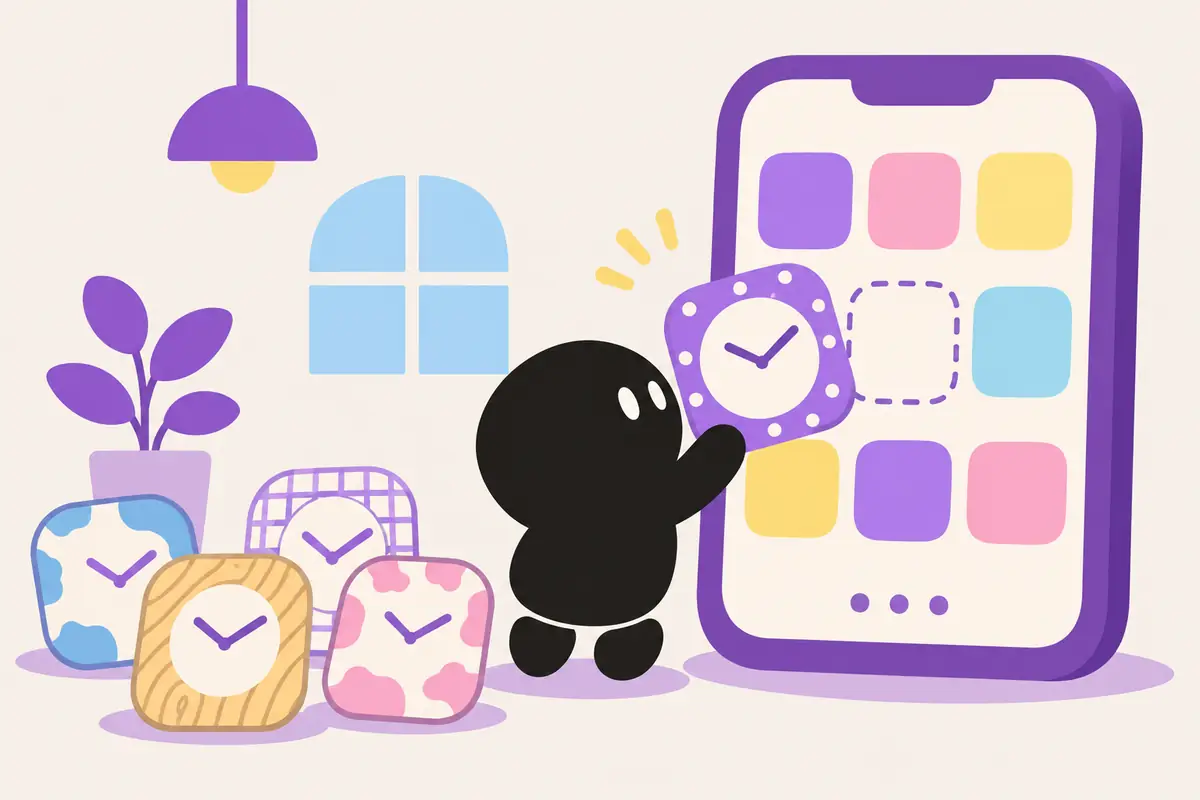
It's a collection of 14 unusual clocks. There's a glowing Nixie tube, a chalkboard, an 8-bit look, a retro game style, a Holstein cow pattern, a library barcode, and one that shows how much of the day is left as a percentage.
Pick a clock in the app and your Home Screen widget turns into it. Every widget you place shows that same design, so it's not for you if you want a different clock in each spot.
Nothing costs money, and an ad shows when you open the app. There's no Lock Screen widget yet.
With 18,473 ratings, it's the most used of the four. It recreates an old flip clock on your iPhone, and the description says it can show seconds on the Home Screen, Lock Screen, Dynamic Island, and StandBy.
Its widgets can combine the clock, a calendar, and a line of text you choose. It also has a Pomodoro timer and an alarm, so it suits people who want all their clock features in one app.
It's an analog clock widget that can show a second hand. You choose the dial, the hour and minute hands, and the second hand separately, and you can change the colors of the hands and background too.
You see a live preview as you customize. It's for people who prefer clock hands to digits.
You choose from the clock designs in the app and put one on your Home Screen. You can switch designs as often as you like.
You can set the background color by color code, which makes it easy to match your wallpaper. With the premium version, you can use a photo from your camera roll as the clock's background.
If you'd rather not install an app
The Clock app that comes with your iPhone has its own widget, which puts an analog clock on your Home Screen. For the time on your Lock Screen, touch and hold the Lock Screen to change the font and color.
There aren't many designs to choose from, though. If you're choosing by looks, the dedicated apps give you a lot more range.
Which one to pick
If you want the same clock on your Lock Screen and in StandBy too, Flip Clock
If you want to choose the shape and color of analog hands yourself, Clock SD
If you want to match your wallpaper color or use a photo as the background, My widget clock
If you want an unusual clock nobody else has on their Home Screen, ClockWidget
FAQ
Are they free?
All four are free to download. ClockWidget has nothing to pay for, and in My widget clock, using a photo as the background is part of the premium version.
Can ClockWidget show a different design in each widget?
Not right now. The one design you pick in the app shows in every widget you place.
What if the clock shows the wrong time?
With ClockWidget, opening the app once can fix it. If it doesn't, try removing the widget and adding it again.
I still want to add more clocks to ClockWidget, so if there's a clock you'd like to see, let me know ⏰
Features and rating counts were checked against each app's App Store description on November 15, 2026, and may change with updates.